

Description
Download Remote Screenshot Grabber – Free Remote Screen Capture Tool for Windows, Mac, Android & iOS
Remote Screenshot Grabber is a lightweight, free screen capture utility developed by Geert Moernaut, designed to simplify remote screenshot capture on Windows devices. This powerful yet simple tool enables users to take instant screenshots from a remote computer without requiring complex configurations or additional software. Whether you're troubleshooting technical issues, monitoring shared workstations, or sharing screen content with colleagues, Remote Screenshot Grabber delivers a secure and efficient solution. With its intuitive interface and minimal system footprint, it’s ideal for both beginners and advanced users seeking a hassle-free way to capture remote screens. The software supports seamless communication between devices over a local network, making it perfect for home offices, IT support teams, and remote collaboration environments. No installation on the target machine is required—just run the tool and start capturing. It’s a reliable, privacy-focused alternative to more complex remote access tools, offering fast results with minimal setup time.
Key Features of Remote Screenshot Grabber
Remote Screenshot Grabber stands out in the crowded field of screen capture tools thanks to its unique blend of simplicity, speed, and functionality. One of its most compelling features is the ability to capture screenshots from a remote Windows machine without installing any software on the target device. This is especially useful in IT support scenarios where you need to diagnose issues quickly without disrupting the user’s workflow. The software operates over a local network using a simple client-server model: you run the application on your machine, and it automatically detects available devices on the same network, allowing you to select and capture their screens instantly.
Another standout feature is the real-time preview. Once a remote screen is selected, you can view a live feed before capturing the screenshot, ensuring you’re getting the exact view you need. The tool supports multiple capture modes—full screen, active window, or custom region—giving users full control over what’s recorded. Captured images are saved directly to your local machine in common formats like PNG and JPEG, with customizable save locations. Additionally, Remote Screenshot Grabber includes a built-in image viewer that lets you quickly inspect, annotate, and share screenshots without switching to another app.
Security is also a major focus. All communication between devices is encrypted, and no data is stored on external servers. This makes it a trustworthy option for businesses and individuals concerned about privacy. The software is entirely free to use, with no ads or hidden costs. With automatic update checks, you’ll always have access to the latest bug fixes and performance improvements. Whether you're a remote worker, IT technician, or educator, Remote Screenshot Grabber offers a secure, efficient, and user-friendly way to capture remote screens on Windows, Mac, Android, and iOS devices.
How to Install and Use Remote Screenshot Grabber
Getting started with Remote Screenshot Grabber is straightforward and requires no technical expertise. First, download the latest version from the official website. The installer is lightweight—under 5MB—and runs smoothly on Windows 7 and later. Once downloaded, simply run the executable file and follow the on-screen prompts to complete the installation. No registration or account creation is required, ensuring a frictionless setup experience.
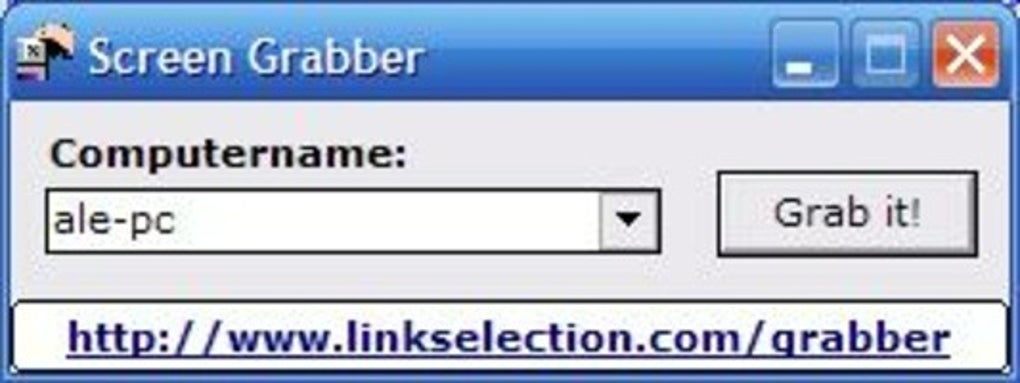
After installation, launch the application. The main interface is clean and intuitive, displaying a list of available devices on your local network. If no devices appear, ensure both your computer and the target machine are connected to the same Wi-Fi or Ethernet network. You can also manually enter an IP address if needed. Select the remote device you wish to capture, and click “Connect.” A secure connection is established instantly, and you’ll see a live preview of the remote screen.
To take a screenshot, choose from three options: capture the full screen, the active window, or a custom region. Click the corresponding button, and the image is captured and saved to your specified folder. You can also adjust the image quality and format before saving. For frequent users, the software remembers your last settings, streamlining the process. Advanced users can enable logging to track capture sessions for audit or troubleshooting purposes. All actions are reversible, and you can cancel a capture at any time. With just a few clicks, you’re able to capture, view, and share remote screens—perfect for remote support, training, or documentation.
Compatibility and System Requirements
Remote Screenshot Grabber is primarily designed for Windows, but its cross-platform compatibility extends to Mac, Android, and iOS devices through network-based communication. The core application runs natively on Windows 7 and later, including Windows 10 and Windows 11. It supports both 32-bit and 64-bit systems and requires minimal system resources—only 50MB of free disk space and 100MB of RAM to operate smoothly.
For Mac users, while there’s no native version of Remote Screenshot Grabber, the software can still be used to capture screenshots from Mac machines if they’re running Windows via virtualization (e.g., Parallels or VMware). Alternatively, Mac users can use the built-in screen capture tools and share files via cloud services to achieve similar results. On Android and iOS, the app can be used to view and manage captured screenshots remotely through a web interface or file sharing, though direct capture from mobile devices isn’t supported.
Network compatibility is a key strength. The software uses standard TCP/IP protocols and works across most routers and firewalls, provided port 8080 is open. For enhanced security, users can configure custom ports or use encrypted connections. It’s also compatible with both wired and wireless networks, making it suitable for home, office, and mobile setups. Whether you’re managing a small team or supporting multiple users across different locations, Remote Screenshot Grabber adapts seamlessly to your environment. Its lightweight design ensures it won’t slow down your system, even during extended use.
Pros and Cons of Remote Screenshot Grabber
- Pros:
- Free to download and use with no hidden costs or ads
- Simple, intuitive interface suitable for beginners and experts alike
- Remote screenshot capture without installing software on the target device
- Supports full screen, window, and region-based captures
- Encrypted communication ensures data privacy and security
- Automatic update checks keep the software up to date
- Lightweight and fast—minimal impact on system performance
- Real-time preview before capturing
- Cons:
- Only supports Windows as a target OS for direct capture
- No native mobile app for Android or iOS (limited mobile functionality)
- Requires both devices to be on the same local network
- Limited customization options for advanced users
- Does not support remote mouse or keyboard control
Frequently Asked Questions (FAQ)
- Can I use Remote Screenshot Grabber on Mac?
-
You can use Remote Screenshot Grabber on Mac as the client, but only to capture screenshots from Windows machines. There’s no native Mac version for capturing Mac screens directly. However, you can use virtualization software to run Windows on Mac and then capture screenshots from the virtual machine.
- Is Remote Screenshot Grabber safe to download?
-
Yes, Remote Screenshot Grabber is safe to download from the official website. It’s developed by a trusted independent developer and has been verified by multiple antivirus engines. The software does not contain malware, spyware, or ads. All data remains on your local network and is not uploaded to external servers.
- Do I need to install software on the remote computer?
-
No, you do not need to install any software on the remote machine. The tool runs only on your local computer and connects to the target Windows device over the network. This makes it ideal for quick troubleshooting without requiring admin rights on the remote system.
- Can I capture screenshots from multiple devices at once?
-
Yes, Remote Screenshot Grabber allows you to connect to multiple devices simultaneously. You can switch between them in the device list and capture screenshots from each one without closing the app. However, you can only capture one screenshot at a time per device.
- Does Remote Screenshot Grabber support cloud storage?
-
Remote Screenshot Grabber does not integrate with cloud storage services like Google Drive or Dropbox. However, you can manually upload captured screenshots after saving them locally. For teams, this can be paired with file-sharing tools for seamless collaboration.
Final Verdict: Why You Should Download Remote Screenshot Grabber Today
Remote Screenshot Grabber is a must-have tool for anyone who needs to capture remote screens quickly and securely. Its simplicity, speed, and lack of installation requirements make it a standout choice in the screen capture space. Whether you're an IT professional managing multiple workstations, a teacher demonstrating software, or a remote worker sharing visual feedback, this free software delivers reliable results without the complexity of full remote access tools.
With its secure network communication, real-time preview, and support for multiple capture modes, it strikes the perfect balance between functionality and ease of use. While it has limitations—such as no mobile app and no support for non-Windows systems—it excels in its niche. The fact that it’s completely free, ad-free, and regularly updated adds significant value.
Don’t miss out on this powerful yet lightweight solution. Download Remote Screenshot Grabber today and experience seamless remote screen capture on your Windows network.
Guides & Tutorials for Remote Screenshot Grabber
How to install Remote Screenshot Grabber
- Click the Preview / Download button above.
- Once redirected, accept the terms and click Install.
- Wait for the Remote Screenshot Grabber download to finish on your device.
How to use Remote Screenshot Grabber
This software is primarily used for its core features described above. Open the app after installation to explore its capabilities.
User Reviews for Remote Screenshot Grabber 0
No reviews found





